Monday, November 26, 2018

How to Fix Flash Drive Not Showing Up Problem


How to Fix Flash Drive Not Showing Up Problem

Try the following solutions:
1. Check Your USB Ports

A malfunctioning USB port could be the cause of your flash drive not showing up on your computer. So, it is recommended that you use Control Panel to refresh the USB ports and see if they are working properly.

Follow these instructions:

Step 1: Open Control Panel on your Windows PC.

Step 2: Navigate to Hardware and Sound > Device Manager and then click on Universal Serial Bus controllers.

Step 3: Now click on Uninstall and then use the ‘Scan for Hardware Changes’ option to see if your flash drive is recognized by the operating system. If the flash drive is still not recognized, then the device is probably faulty.
2. Update Your Device Drivers

Outdated device drivers are another cause of flash drive not showing up on computer. If your device drivers are outdated, then updating them is likely to solve the problem.

Follow these instructions:

Step 1: Open Control Panel on your computer.

Step 2: Navigate to Hardware and Sound > Device Manager and then click on Other devices.


Step 3: Now from the list, check if there is any device listed as ‘Unknown Device’. If yes, then open its Properties via the right-click menu and then click on Driver.

4. Now click on Update Drivers. Your flash drive should show up on your computer after this step.
3. Change Power Management Settings

If not configured correctly, the Power Management settings in Windows can cause your flash drive to not show up on your computer. That’s why it is recommended that you change your Power Management settings to see if the problem is solved.

Follow these instructions:

Step 1: Open Control Panel on your computer.

Step 2: Navigate to Hardware and Sound > Device Manager and then click on Universal Serial Bus controllers.

Step 3: Now from the list, open the first ‘USB Root Hub’ that you see.
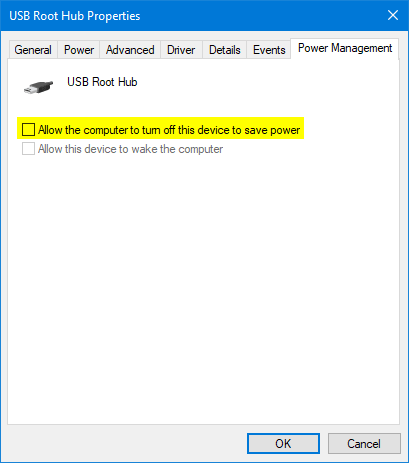


Step 4: Navigate to the Power Management tab and then unmark the option “Allow this computer to turn off this device to save power”.

Step 5: Click OK to save your settings. The problem should be solved now.

Sponsor ads:

Gihosoft Free iPhone Data Recovery:https://www.gihosoft.com/iphone-data-recovery-free.html

Gihosoft iPhone Data Recovery Free

Free iPhone Data Recovery Software for Windows/Mac

Recover up to 12+ types of files, including contacts, SMS, photos, WhatsApp, Viber, notes, etc.

Restore lost data from iOS devices directly or from iTunes and iCloud backup

Recover iPhone data lost due to iOS upgrade/jailbreak, accidental deletion, device lost or broken

Support all the latest iPhone, iPad and iPod Touch

Both Free and Pro version.

If you lost data after you updated to a new iPhone, you can always use Gihosoft iPhone Data Recovery to get the data back from the old iPhone or backup.You may also like: iphonerecovery.com

If you use android phones, please choose Gihosoft Android Data Recovery.

With Gihosoft Android Data Recovery, no longer afraid of data loss!


Worth reading:Best youtube downloader online download youtube 1080p


Wednesday, October 3, 2018

5 Tips to Fix iPhone Note App Missing Problem

5 Tips to Fix iPhone Note App Missing Problem
1. Reset Home Screen Layout

You can also reset your home screen layout if your Notes icon disappeared. To do this, head on to "Settings" > "General" > "Reset" > "Reset Home Screen Layout". Doing this will bring Notes icon back on the home screen. Check if this has worked. If not, there must be another problem. Just move on the next solution.


2. Using Search Feature to Find Notes App

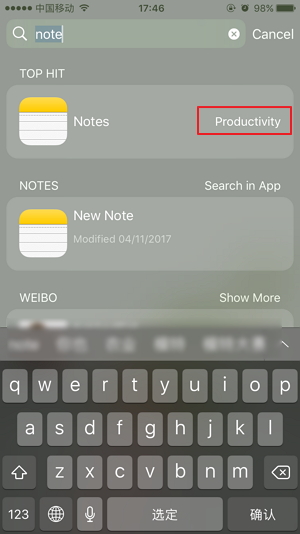
Sometimes you may not find the Note app when you put it in a particular folder especially when there are many apps and folders on your iPhone screen. The search feature can help you finding the app quickly when you find your Notes icon is missing in your iPhone (at least you think so). You just need to swipe down the screen from the top. Type and look for "Notes". The feature will show the result and you will be able to find the app. For example, in the image below, you can find the Note icon is the the "Productivity" folder.


3. Reinstall the Notes App

When the Note app disappeared, the easiest way to get the app back is reinstalling it. This is only possible if you have earlier enabled the Notes app in iCloud setting. That means your notes have already synced to iCloud. Reinstalling will recover all your Notes if the app is synced with iCloud. Here are the steps for this.


Open "App Store" and touch on "Search".


Type "Notes" and look for the app.


Subsequently, re-download it and launch the re-installed app.


Tap on "Go to Settings" to let the app direct to iCloud.


Enable Notes in iCloud settings and your notes will recover.


4. Reset All Settings

Here is another and the most common fix to try and it has worked in nearly all issues. Reset your settings by going to "Settings" > "General" > "Reset" > "Reset All Settings". Enter passcode and tap "Reset All Settings" once again to verify the action.


5. Restore with iTunes or iCloud

You can either restore your device with iTunes or iCloud if your Notes app is missing on iPhone. However, the solution can’t be considered as the ideal one but, you will get few of your notes back at least, but all the other data will be ovewritten with the backup.

Using iTunes:


Open iTunes on PC and connect iPhone with PC using USB cord.


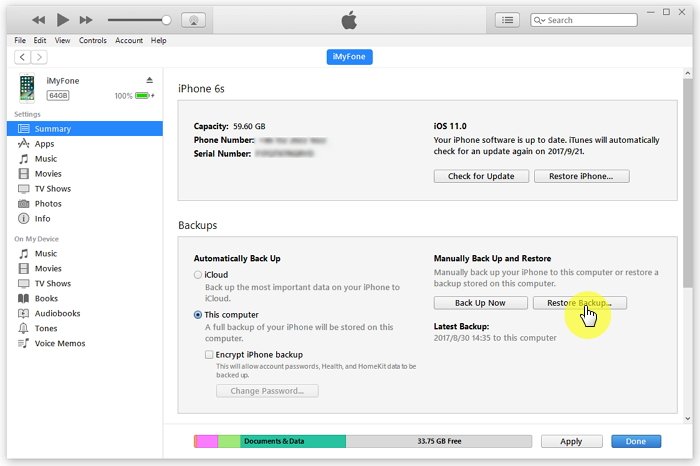
Click on the phone icon at the top and go to "Summary" tab.


Now, hit on "Restore Backup" and you will get your Notes app back.


Using iCloud:


You need to erase all settings first. Just head to "Settings" > "General" > "Reset" > "Erase All Contents and Settings".


Now, reboot the device and then touch on "Restore from iCloud Backup" followed by signing in to iCloud.


After this, tap "Choose backup" and select the backup from the list of available backups.


The Settings and accounts will be restored from iCloud backup and the device will restart and will download your purchased music, apps, photos etc. This way, your Notes app will also be recovered.


Conclusion

We offered you some easy and helpful fixes you can go for when Notes icon is missing on your iPhone. Notes, as we mentioned in the beginning is one useful app and many people get depend on it to store some important details and information. Losing it or finding the Notes icon disappeared can be frustrating. Thus, we made an effort to provide the best you can do in the situation. Hope you found this post useful.

Gihosoft Photo Eraser Erase unwanted objects and perfect your amazing photos!

If you lost data after you updated to a new iPhone, you can always use Gihosoft iPhone Data Recovery to get the data back from the old iPhone or backup.

Jihosoft Photo Eraser

Free iTunes/iPhone Backup Extractor for iPhone, iPad

iPhone Backup Extractor - Extract Data from iPhone Backup

Jihosoft Android Data Recovery: the best Android Data Recovery software for Windows and Mac to recover deleted contacts, messages, photos, videos, WhatsApp and etc from Android devices.

Gihosoft Android data recovery Free is a super awesome software specialized in Android file recovery. With this program, you are able to recover deleted photos, music, videos, messages, contacts, call logs, WhatsApp messages, Viber chat history and more from Samsung, Huawei, LG, HTC, Motorola, Google, Oneplus, Sony, Lenovo, ZTE and other Android devices directly.

You may also like:online youtube downloader

Monday, August 13, 2018

2 Free Ways to Backup iPhone WhatsApp without iCloud (iOS 12 included)


1. Backup Whole iPhone Including WhatsApp Using iTunes

Storing more than 5 GB of data on your iCloud account is certainly possible but then you have to pay for it monthly. Backing up your iPhone with iTunes is another alternative option. With iTunes, you can backup data from your iPhone/iPad/iPod to your computer but unlike iMyFone iTransor, it doesn't enable you to selectively perform the backup. You can simply backup all of your data by connecting your device and your computer using a USB cable.

Step 1 - Connect your iPhone and computer using a genuine USB cable. Launch and open iTunes now.

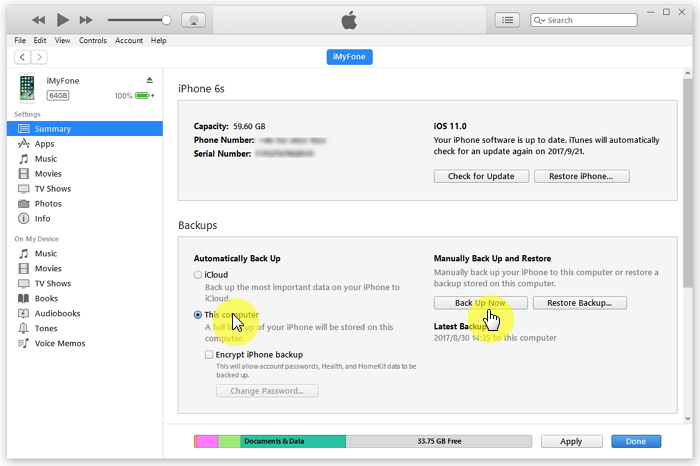
Step 2 - On the top bar an iPhone icon will appear. Click on that icon and then click on "Summary" tab from the sidebar.

Step 3 – Next, you need to click on "Back Up Now" button on the Summary page and then confirm your actions. In a matter of few minutes, you have successfully backup iPhone WhatsApp without using iCloud.


You may also like:
Gihosoft Total Video Converter is a professional all-in-one video tool that enables you to convert videos and audios into various different formats. You can also download videos from YouTube or other online video sharing sites and convert them easily. Plus, you’re able to personalize your videos with its inbuilt editor, such as, trimming, cropping, applying video effects, adding watermark, subtitles, and more. If you need a powerful and professional desktop video converter program, just download Total Video Converter and follow the step-by-step guide here to have a try.
2. Email iPhone WhatsApp Chats to Yourself

WhatsApp has the feature of emailing the chats to oneself or to anyone else if you wish to backup or share the WhatsApp chat history. But this method only allows you to view the chats without the ability to import them to your WhatsApp account. These following steps will explain you broadly about how to email your chats to an email address.

Step1 – Launch and open WhatsApp on your device. Tap and open an individual chat or a group chat depending on which chat you want to email yourself.

Step 2 – Now, tap on the "chat name" on the top of the screen and you can then see the contact information where you need to click on Export Chat'.

Step 3 – It will then pop up two options, 'Attach Media' and 'Without Media'. Choose the one suitable to your need.

Step 4 – On the next screen, it will then attach the complete chat history of the selected individual or group in the email. Type in your email address and hit 'Send'. Refresh your inbox and then you can view the chats in your email.


That's about it, you've now known all 2 ways to back up iPhone WhatsApp without iCloud. All of them are free methods. Just choose the best one to start WhatsApp backup.You may also like:

iPhone backup unlocker:Recover iTunes Backup Password.

iPhone backup extractor :The best iPhone Backup Extractor software to extract photos, text messages, contacts, voice memos, note, WhatsApp, Viber and etc from iPhone/iPad backup

Gihosoft Free iPhone Data Recovery is a professional iPhone Data Recovery software to get back all your lost text message, photo, video, call history, note, contact and more from iPhone/iPad/iPod Touch. It offers a full solution to recover your lost data in different tough situations. Besides recovering data directly from iPhone, iPad and iPod touch, it also allows you to recover data from iCloud and iTunes backup files.


Friday, August 10, 2018

How to Make Messages Private on iPhone


How to Make Messages Private on iPhone?
Turn Off Message Preview to Make Message Private on iPhone


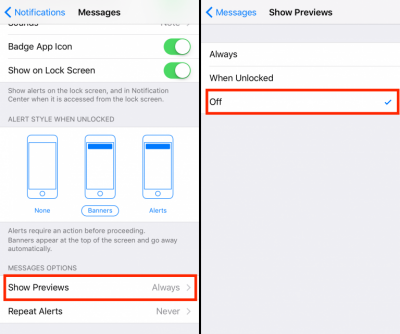
The feature mentioned above is called Message Preview. This feature is responsible for displaying a message without asking a user to unlock the device. You can disable this feature via your iPhone Settings app to make your messages private.


Open Settings app on your iPhone.


Navigate to Notifications > Messages.


In the Messages section, you will see two options; you can either use the Message Preview feature to turn on for the Lock Screen or disable the feature completely. Follow the on-screen instructions to disable the feature.


Apps to Make Your Messages Private on iPhone
CoverMe Private Text & Call


CoverMe is a popular iOS app available on App Store that can help you make your messages private. Apart from messages, the app also allows you to make secure and private phone calls, send disappearing messages, encrypt conversations, and much more.


Features


Send private messages as well as make all your messages private.


Make private and secure phone calls.


Recall sent messages as well as send disappearing messages.


Encrypt all your conversations.


Lock personal text messages.


Shake to hide messages.
Privatext


Privatext is another app that you can use to hide/secure your text messages and make them private on your iPhone.


Features


You can lock Privatext app, allowing you to enter a password in order to view your messages.


Automatic message deletion.


Confirmation Texting feature double checks whether you are sending the message to your intended contact.


Share photos securely in your private messages.
FreedomPop


FreedomPop app works with or without the popular FreedomPop service. It allows you to make free calls and texts with your FreedomPop phone number.


Features


Make your messages private.


Free minutes that allow you to make free domestic calls to anyone in the US.


You get a free phone number via this app. The phone number could be from Spain, UK, or US.


Share your new number with your contacts.


No contracts, no fees, no spam.
Private Message Box


Private Message Box allows you to hide your private text messages with ease. Your messages are locked behind a PIN pad and can only be accessed by providing the correct PIN.


Features


Hide your messages and make them private conveniently.


All your conversations with PSB contacts are secure and secret.


PSB app users can send each other free texts.


Tons of emoji characters to choose from.
Vault


Vault can hide your photos, videos, messages, contacts, and other important data and protect it via a password. The app is quite popular due to its security, efficiency, and ease of use.


Features


Make your messages private and hide them in a secure vault that can only be unlocked via a password.
Backup your videos, photos, and other secure data on Cloud.

Vault can also be unlocked with Touch ID.

Import multiple items simultaneously to the Vault.

If you lost videos from iOS Camerall Roll which are nowhere to download again, you can use Gihosoft iPhone Data Recovery to get back deleted videos from iOS device including iPhone, iPad and iPod Touch.

Jihosoft Android Data Recovery: the best Android Data Recovery software for Windows and Mac to recover deleted contacts, messages, photos, videos, WhatsApp and etc from Android devices.

Any app suggestions or topic recommendations are appreciated in the comments down below.

Monday, August 6, 2018

How to Fix iOS 12 Ringtone Not Working on iPhone After Updating


How to Fix iOS 12 Ringtone Not Working on iPhone After Updating


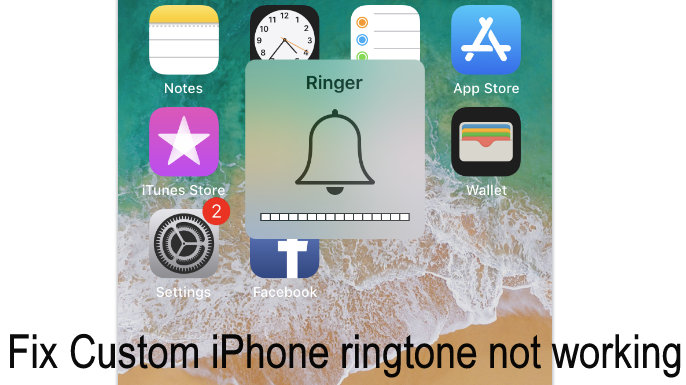
There are so many reasons why your ringtone is not working after updating your iPhone to iOS 12. It may have something to do with either the settings or the hardware. Try out these tips written below:


1 Check the Ring/Silent Button

It’s possible that you’ve mistakenly tapped on the mute button, to confirm that that is not the case, check the left side of the device, if a small and red line is visible, then the mute mode is on, all you have to do is to pull the switch towards the screen to make sure the ringer is back on.
2 Adjust the Ringer Volume

Just because you are hearing another sound on your phone doesn’t automatically mean that your ringer volume is on, the ring volume is set independently from the rest of the sounds. So, go to Settings > Sound and Haptics > then move the slider all the way to the right to turn on your ringer volume.
3 Restart or Force Restart Your iPhone

Restarting a phone can refresh the settings on the phone making it work better, to restart your iPhone to see if that’s the problem, press and hold the Sleep/Wake button until you get an option to “Slide to power off” appears and turn it on after some few seconds.
4 Turn off Do Not Disturb Mode

Turning on the Do Not Disturb mode ensure that all your notifications are silenced. To check if this is the case, go to Settings > tap on the Do Not Disturb > then turn Do not Disturb off.
5 Checking the Speaker

It is possible that a faulty speaker is what is wrong with your phone. You can confirm this by contacting Apple or going to Apple Store to repair.

After trying these tips, the iOS 12 ringtone not working after updating problem should be fixed right now. Now you can start to create your own ringtones for your iPhone.


If you lost videos from iOS Camerall Roll which are nowhere to download again, you can use Gihosoft iPhone Data Recovery to get back deleted videos from iOS device including iPhone, iPad and iPod Touch.

You may also like:

How to transfer messages from iPhone to iPhone

Jihosoft iPhone Backup Extractor Extract and recover all types of data from iPhone backup files, such as camera roll photos, videos, SMS, contacts, reminders, WhatsApp, and etc.


Any app suggestions or topic recommendations are appreciated in the comments down below.


Saturday, July 21, 2018

3 FREE Solutions to Hack WhatsApp Online 2018 Update


3 FREE Solutions to Hack WhatsApp Online 2018 Update


3 FREE Solutions to Hack WhatsApp Online 2018 Guide


Do you want to know what someone has been up to on WhatsApp? Do you suspect that your child may be up to no good, that your spouse is cheating on you or that your employees are sharing sensitive information with the competition. Whatever the reason, you may want to learn how to access their WhatsApp so you can confront them with the issue and fix it once and for all.


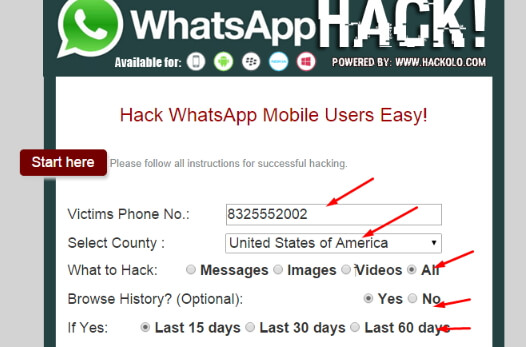
1. Hack WhatsApp Online via Wapphacker


Wapphacker is an online tool that allows users to hack any WhatsApp account without having to install any software on their computer or even install any apps on the target device. It is very easy to use and has powerful servers that can be used to access millions of WhatsApp accounts across the globe. To use it, you just need to know the phone number of the target device.


The following are just some of the features that make this online WhatsApp hacking tool one of the best;


It is entirely accessible online; you don’t need to download any software to your computer or install any app on the devices.


It is very fast; the whole hacking process takes just a few minutes.


You can also gain access to the WhatsApp attachments on the account.


It is completely free to use.


It can be accessed on both desktop and mobile devices.


2. Hack WhatsApp Activity via Writing JavaScript Code


With some knowledge of JavaScript and a chrome extension, it is actually possible to monitor someone else’s WhatsApp chats even as they happen in real time. An existing four-line JavaScript code allows you to monitor the online status of any WhatsApp account. This means that when you have it and the corresponding Google Chrome extension, you can easily monitor what someone is taking about on WhatsApp and who they are talking to.


This method may not be easy for you if you have little knowledge of how JavaScript works. It is also not the ideal solution when you need to make a copy of the WhatsApp data you are tracking. But it allows you to follow a back and forth conversation between two users without having to install any software on your computer or install any apps on the device.Jihosoft iPhone Backup Extractor Extract and recover all types of data from iPhone backup files, such as camera roll photos, videos, SMS, contacts, reminders, WhatsApp, and etc.


Gihosoft Free iPhone Data Recovery is a professional iPhone Data Recovery software to get back all your lost text message, photo, video, call history, note, contact and more from iPhone/iPad/iPod Touch.


3. Hack WhatsApp Messages without Installing on Target Device


So far, the two methods we have outlines above have two advantages; They allow you to access the data on any WhatsApp account without installing software on your computer and without installing an app on the device. But they also have two shortcomings; Both of them can’t provide a lot of information on the device and both can be inaccessible and difficult to use at times. But there is a solution that is the perfect remedy for both these problems. This solution is Spymer. Sponsor ads:
Jihosoft  iPhone Data Recovery


Sponsor ads:
Jihosoft iPhone Backup Extractor Extract and recover all types of data from iPhone backup files, such as camera roll photos, videos, SMS, contacts, reminders, WhatsApp, and etc.


Gihosoft Free iPhone Data Recovery is a professional iPhone Data Recovery software to get back all your lost text message, photo, video, call history, note, contact and more from iPhone/iPad/iPod Touch.

Wednesday, July 18, 2018

How to Add Soundtrack on Instagram Story on iPhone 2019 Guide


How to Add Soundtrack on Instagram Story on iPhone 2019 Guide


Step #1. Fire up Instagram on your iPhone or iPad.


Note: There two ways to Post Soundtracks to your story and that you can do before or after capturing a video clip.


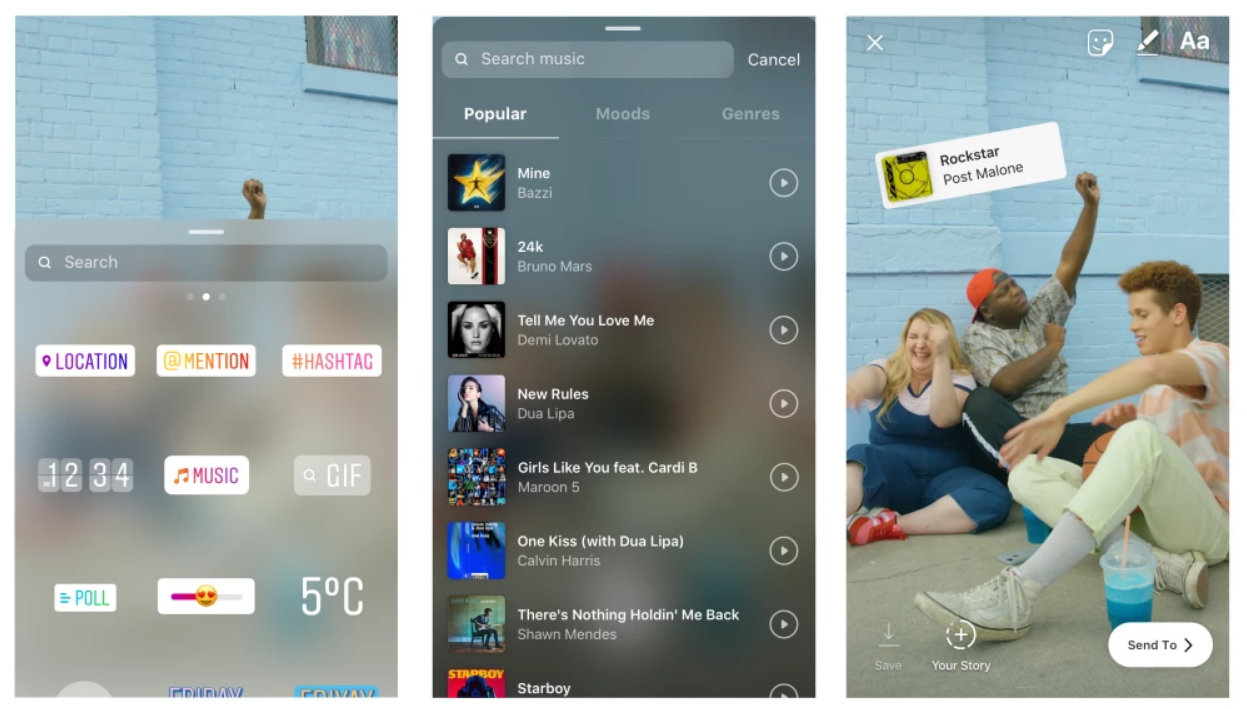
Just open the Camera App by swiping right from the left of the screen and then pick the new “Music” option tab under the record button.


If you ever lost or accidentally deleted data from your iOS device, you can use the professional Gihosoft iPhone Data Recovery software to retrieve important data from iPhone, iPad or iPod Touch even without backup.


Jihosoft iPhone Backup Extractor Extract and recover all types of data from iPhone backup files, such as camera roll photos, videos, SMS, contacts, reminders, WhatsApp, and etc.


The latest Instagram app will also allow you to add Music track after capturing a shot or story. To get Music icon tap on Sticker tab appears on top of the App bar.


Step #2. You can see the Music library of tons of songs soundtrack clip will be on your card.


Using Search bar, you can find a popular song, Music by Mood, besides Genres category wise. In more, you can listen to a Preview, by tapping on the Play button.


Step #3. Once you have picked up your Audio Song, easily adjust it. For instance, you can fast-forward it or rewind the whole track to select the specific segment part that can go nicely with your Instagram story.


Step #4. After you are satisfied with Add background Music to Instagram Stories, then share it as usual.

Fortnite Has Been Down for Hours

If you are a Fortnite player, you are going to be surprised when you open the game today because you will be staring at a black hole. Fortni...